Slack Integration
Last updated: June 23, 2026
Slack notifications send Aisle findings to a channel in your workspace so the right people see new critical issues without having to be in the Aisle UI. This article covers the setup, what gets sent, and how to tune the noise level.
What gets sent
Aisle posts a Slack message when a new finding crosses the minimum severity threshold you configure. Each message includes:
The finding's title and severity.
The repository it was found in.
The file path and CWE classification (where applicable).
A link straight to the finding's detail page in Aisle.
Prerequisites
Admin access in Aisle.
Workspace admin in the Slack workspace where you'll install the Aisle Slack app, or permission from a workspace admin to authorize an integration in your channel.
Connect Slack
Navigate to Integrations → Slack Notifications.
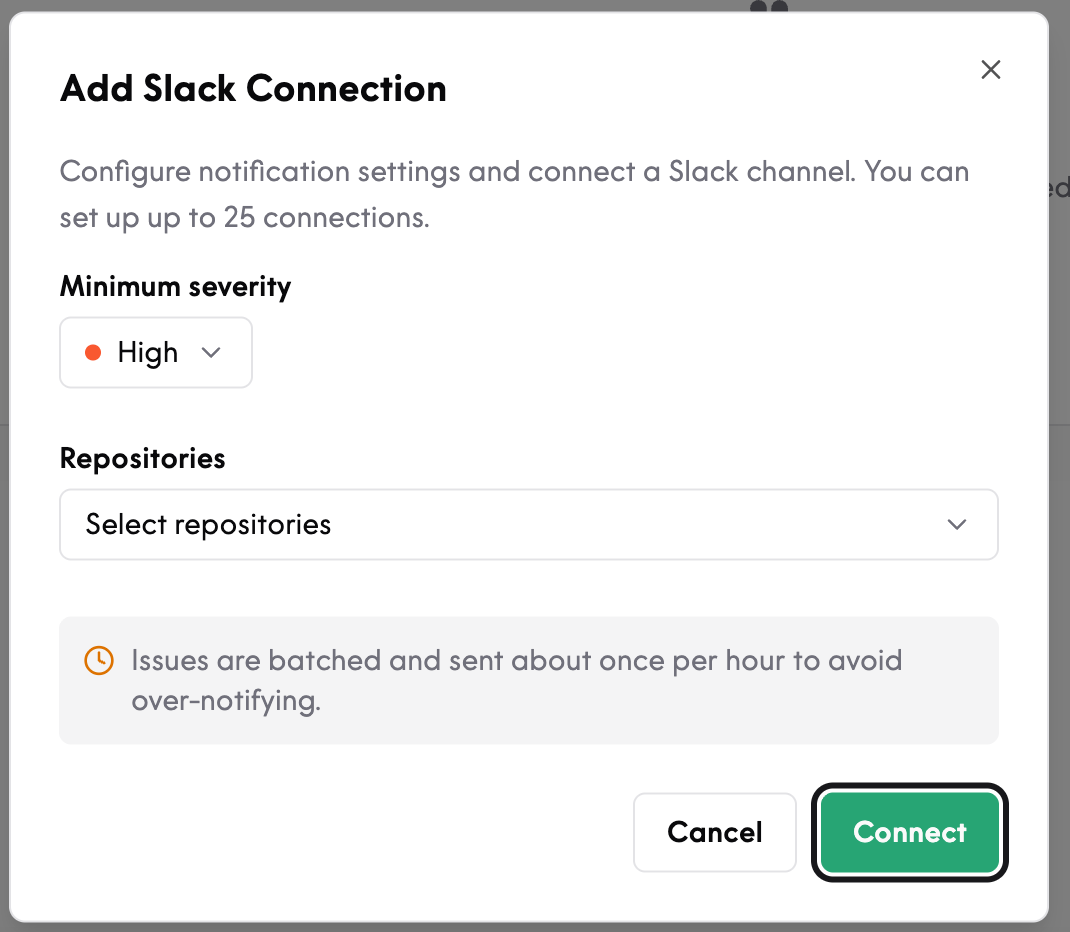
Click Connect in the Issue notifications card.
Slack opens the OAuth consent screen. Sign in if needed, then:
Pick the workspace you want Aisle to post into.
Pick the channel. The dropdown lists every channel Aisle can post to (public channels by default; for private channels you'll need to
/invite @Aislefirst).
Approve. Slack redirects you back to Aisle and the integration card now shows the connected channel name (e.g.
#appsec-alerts).
Configure the threshold
After connecting, set Minimum severity in the same card. Options:
Value | What gets sent |
|---|---|
| Critical findings only. |
| Critical and High. |
| Critical, High, and Medium. |
Low is intentionally excluded — anything Low-severity belongs in reports, not in Slack.
Test the connection
Click Send test notification to fire a sample message into the channel. Use this after connecting and after any channel change to confirm the integration is working.
What to expect
Notifications are informational. If Slack is unavailable, your findings still land in the Issues Board — only the Slack message is skipped.
A Slack message isn't resent if it fails to post, so treat Slack as an awareness layer rather than your system of record.
Notifications are sent only for newly detected findings that cross your threshold. Status changes — a finding being resolved, dismissed, or marked a false positive — don't trigger Slack messages, which keeps the channel focused on new items that need attention.
Disconnect
In the same card, click Disconnect. Aisle stops posting immediately and the authorization on the Slack side is removed.
Best practices
Use a dedicated channel.
#appsec-alertsor#security-findings— not a general engineering channel. Aisle findings are high-signal, but volume can be significant during onboarding while Aisle completes its first full scan of your repositories.Pick the threshold by team maturity. A new appsec program with a small team should start at
critical; a mature program with a triage rotation can run athighormedium.Pair Slack with ticketing, not as a replacement. Slack tells humans something happened; the ticket is the audit trail and the action. Set up Jira Integration alongside Slack for the full loop.
Troubleshooting
No messages arriving? Confirm the channel still exists and, for a private channel, that
@Aisleis still invited. Then click Send test notification to check the connection.Test works but real findings don't appear? Check your Minimum severity threshold — findings below it won't be sent.
Messages stopped after a channel change? Re-run Send test notification to confirm the new channel is connected.