User management
Last updated: June 23, 2026
User management in Aisle covers inviting new people to your workspace, assigning them roles and teams, and removing them when they leave. Because team membership controls which repositories a user can see, user management is also how you control repository visibility for non-admins.
Who can manage users: Admins and CISOs can view, create, and update users. Only Admins can delete users. See [Role-Based Access Control] for the full permission breakdown.
Before you start: how Aisle and your identity provider work together
Aisle relies on your organization's identity provider (SSO) for authentication. Creating a user in Aisle doesn't automatically give them the ability to log in — they also need to exist in your IdP.
In practice this means:
If you're adding someone who already uses your IdP (e.g. a new hire who's been onboarded to your SSO), you can create their Aisle account directly.
If they're not yet in your IdP, ask your IT team to add them there first. Otherwise they'll receive an Aisle invite but won't be able to sign in.
Aisle determines what a user can do once authenticated; the IdP determines whether they can sign in at all.
Accessing User Management
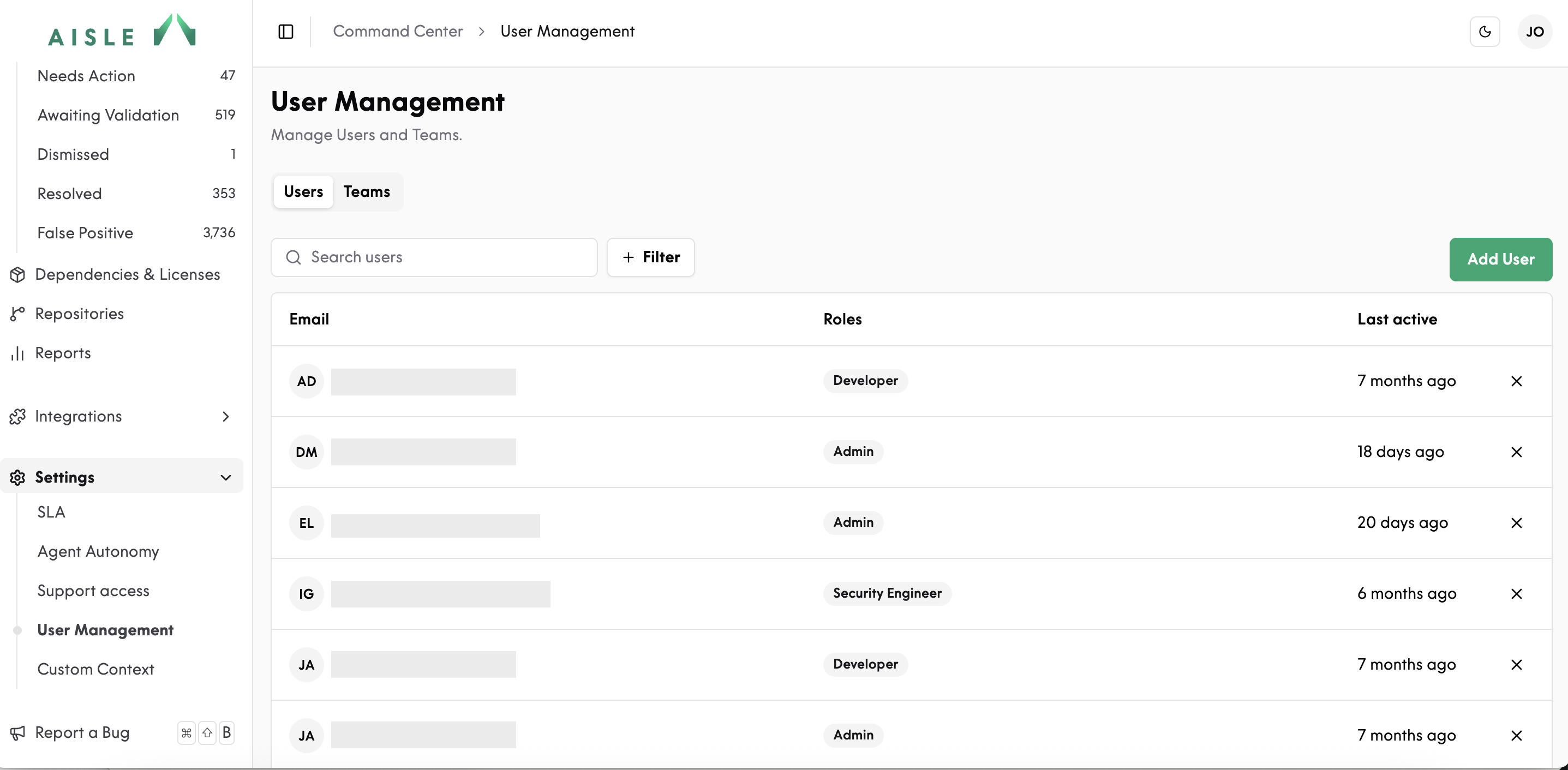
Navigate to Settings → User Management. You'll see a list of all users in your workspace, along with their roles and team assignments.
Inviting a new user
From Settings → User Management, click Add user.
Enter their email address — this should match the email they use in your identity provider.
Assign a role. Global roles (Admin, CISO) apply across the whole platform; team-scoped roles (Security Engineer, Developer, Observer) only take effect within the teams you assign.
If you've chosen a team-scoped role, assign one or more teams.
Confirm. The user will receive an email invitation.
If the invited user doesn't receive the email, check that their address matches the one in your IdP, and that they're provisioned there.
Changing a user's role
In Settings → User Management, click the user you want to update.
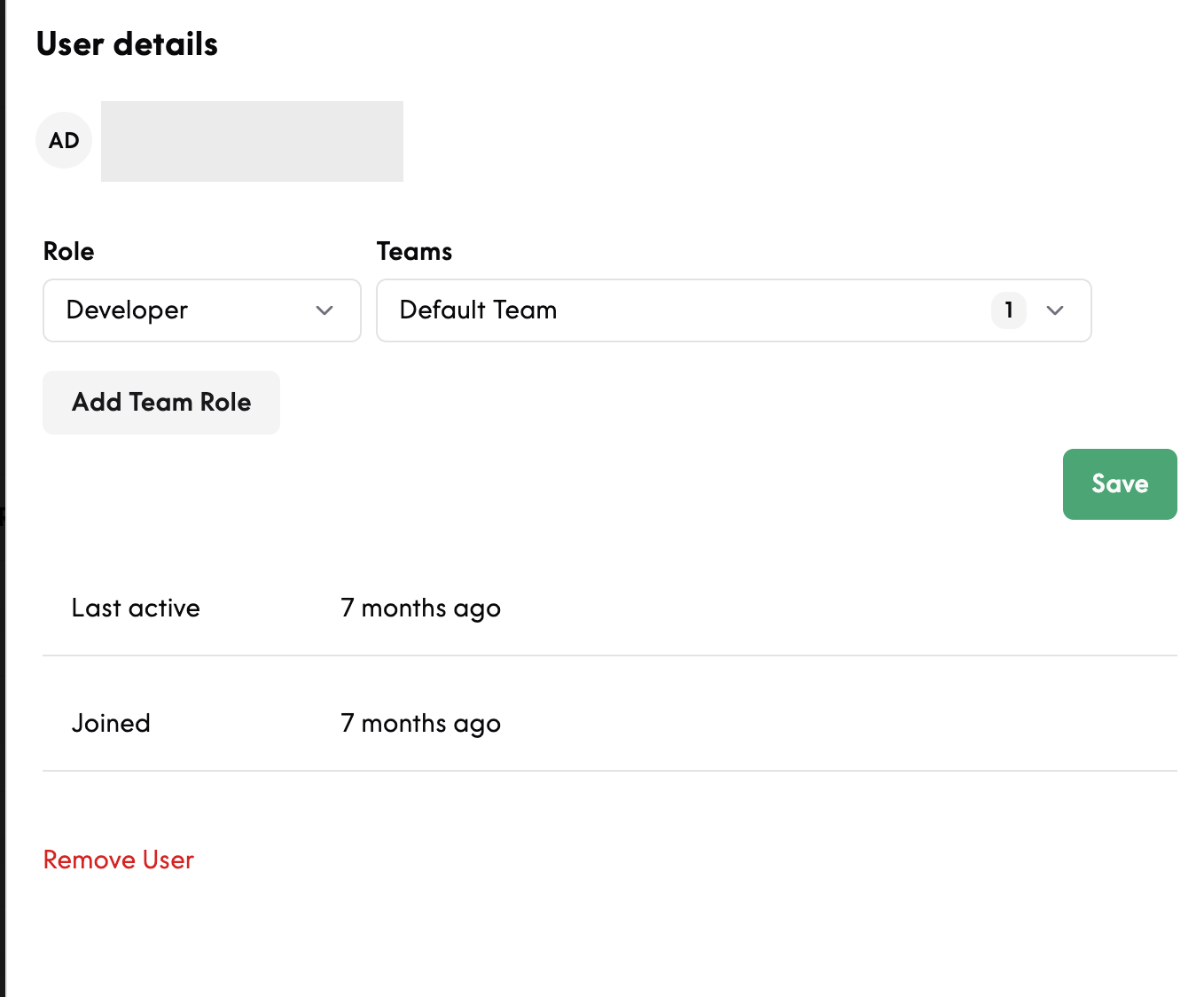
Select a new role from the dropdown.
Save.
Managing team membership
A user can belong to multiple teams, and can hold different team-scoped roles in different teams.
To update team membership:
Click the user in Settings → User Management.
Add or remove teams from their assignment list.
Save.
Removing a user from a team revokes their access to that team's repositories but leaves their account intact. If they're not in any teams and don't have a global role, they'll still be able to sign in but won't see any repositories.
Removing a user
Only Admins can remove users.
In Settings → User Management, click the user.
Select Remove user.
Confirm the action.